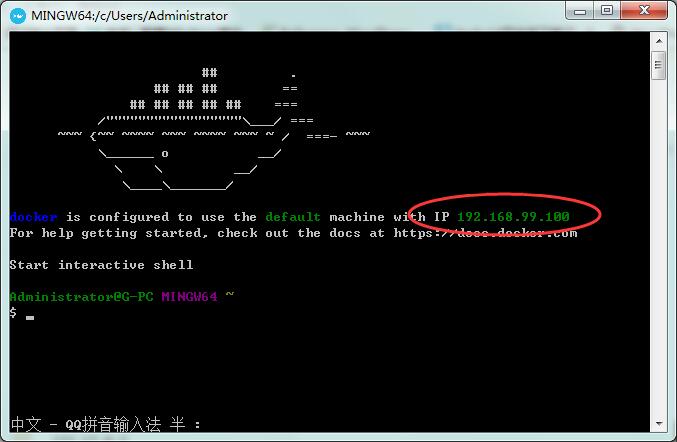
目前Windows Docker 支持 Windows 10 Professional or Enterprise 64-bit.
win7或win8需要下载 Docker Toolbox 下载地址:https://download.docker.com/win/stable/DockerToolbox.exe
我自己操作系统为win7
1.安装DockerToolbox后桌面会出现三个图标 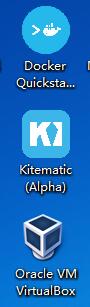
2.运行官方HelloWorld,直接打开Docker Terminal 输入:
docker run hello-world运行后正常情况下会显示
Hello from Docker!
This message shows that your installation appears to be working correctly.

To generate this message, Docker took the following steps:
省略...
如果不正常尝试连接VPN试试 3.创建一个简单的容器实例: 我在桌面创建了一个文件夹,有三个文件 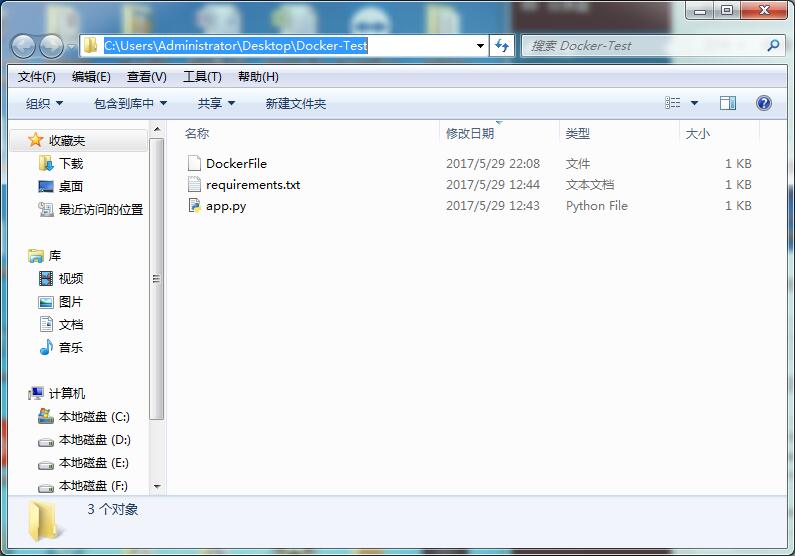 文件内容如下 DockerFile :
# Use an official Python runtime as a base image
FROM python

# Set the working directory to app
WORKDIR app

# Copy the current directory contents into the container at app
ADD . app

# Install any needed packages specified in "app/requirements.txt"
RUN pip install -r  "app/requirements.txt"

# Make port 80 available to the world outside this container
EXPOSE 80

# Define environment variable
ENV NAME World

# Run app.py when the container launches
CMD python "app/app.py"
requirements.txt
Flask Redis
app.py
from flask import Flask
from redis import Redis, RedisError
import os
import socket

# Connect to Redis
redis = Redis(host="redis", db=0, socket_connect_timeout=2, socket_timeout=2)

app = Flask(__name__)

@app.route("/")
def hello():
    try:
        visits = redis.incr("counter")
    except RedisError:
        visits = "<i>cannot connect to Redis, counter disabled</i>"

    html = "</code></pre>
<h3>Hello {name}!</h3>
<pre><code></code></pre>
" \ "<b>Hostname:</b> {hostname}
" \ "<b>Visits:</b> {visits}"
    return html.format(name=os.getenv("NAME", "world"), hostname=socket.gethostname(), visits=visits)
if __name__ == "__main__":
    app.run(host='0.0.0.0', port=80)
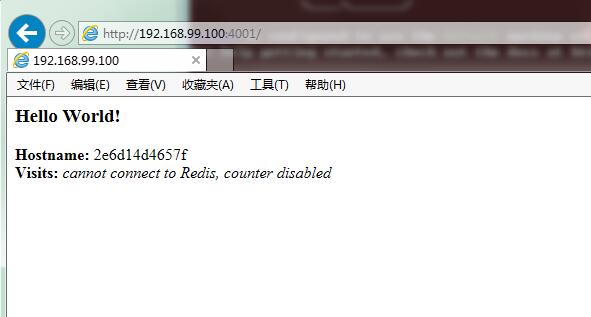
4.生成一个实例,输入命令(注意当前目录为Docker-Test):docker build -t friendlyhello . 5.运行生成的实例:docker run -d -p 4001:80 friendlyhello 正常的话 浏览器输入容器IP:4001就可以访问了, 我的是http://192.168.99.100:4001/